

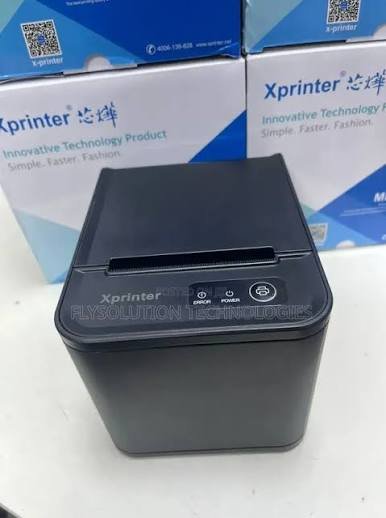
Connectivity is an important consideration when selecting receipt printing equipment for a modern business. A receipt printer must communicate effectively with computers, point-of-sale (POS) terminals, mobile devices, or network systems to receive transaction information and produce accurate printed records. The available connection options influence installation, device compatibility, printing flexibility, and overall workflow efficiency.
Different businesses have different technical requirements. A small retail shop may need a simple USB connection, while a restaurant with several workstations may prefer network-based printing. When evaluating an Xprinter Receipt Printer, understanding the available connectivity options can help businesses choose a configuration that works with their existing equipment and operational needs.
1. USB Connectivity for Direct POS Connections
USB is one of the most common connection methods used in receipt printing systems. It allows a printer to connect directly to a compatible computer, POS terminal, or other supported device through a physical cable.
This option is particularly useful for businesses that operate fixed checkout counters. Once the appropriate driver is installed and the printer is configured, POS software can send transaction information directly to the connected device.
Common applications include:
- Small retail stores
- Convenience shops
- Pharmacy checkout counters
- Reception desks
- Independent service businesses
USB connections are generally straightforward to install and do not require a separate network configuration. However, the connected computer or POS terminal usually needs to remain available for printing operations.
2. Serial Connectivity for Traditional POS Systems
Serial connectivity is used in some established commercial systems and specialized equipment. It allows devices to exchange information through a serial communication interface, commonly using RS-232 connections.
Although USB and network interfaces are widely used in newer installations, serial connections remain relevant where businesses operate older POS terminals or equipment designed around this communication standard.
Serial interfaces can be useful in:
- Legacy retail checkout systems
- Industrial control environments
- Specialized payment terminals
- Existing commercial installations
When choosing a serial-connected printer, businesses should verify supported communication settings, including baud rate, data bits, parity, and flow control. These settings must match the connected system to ensure reliable communication.
3. Ethernet Connectivity for Network-Based Printing
Ethernet allows compatible receipt printers to connect to a local area network through a wired network cable. Instead of relying on a direct connection to one computer, a network-connected printer can receive print jobs from supported devices on the same network.
This arrangement is useful for businesses with multiple POS terminals or workstations. For example, a restaurant may connect a printer to its network so that compatible terminals can send customer orders or billing information.
Important advantages of Ethernet connectivity include:
- Support for centralized printer placement
- Stable wired network communication
- Integration with compatible multi-terminal POS systems
- Flexible installation within a business network
However, network configuration is necessary. Businesses may need to assign an IP address, configure firewall settings, and ensure that the POS software can communicate with the printer.
4. Bluetooth Connectivity for Mobile POS Systems
Bluetooth provides wireless communication between compatible receipt printers and nearby devices. It is particularly useful for businesses that need portable or flexible printing arrangements.
For example, restaurant employees may use mobile POS devices to process payments at customer tables. A compatible Bluetooth printer can produce receipts without requiring a direct USB cable connection.
Other possible applications include:
- Mobile retail services
- Temporary sales counters
- Event-based transactions
- Delivery-related payment processing
- Table-side restaurant billing
Bluetooth connections can simplify installation by reducing cable requirements. However, businesses should check supported Bluetooth versions, pairing procedures, operating range, and compatibility with their mobile devices.
5. Wi-Fi Connectivity for Wireless Printing
Wi-Fi allows compatible receipt printers to communicate through a wireless local area network. This can be useful when installing printers in locations where running physical network cables is inconvenient.
In restaurants, retail environments, and service businesses, Wi-Fi connectivity can support flexible printer placement. Multiple compatible devices may also send print jobs through the same network, depending on the printer’s capabilities and software configuration.
Before selecting a Wi-Fi model, businesses should consider:
- Compatibility with the available wireless network
- Supported Wi-Fi standards and security settings
- Network coverage at the installation location
- POS software and operating system support
- Network configuration and troubleshooting requirements
A stable wireless network is essential for dependable printing. Weak signal strength, incorrect credentials, or network interruptions can prevent print jobs from reaching the device.
6. Comparing Common Receipt Printer Connectivity Options
Each connection method has different strengths and limitations. The most suitable option depends on the business environment, available equipment, and expected printing workflow.
| Connectivity option | Main advantage | Common application |
|---|---|---|
| USB | Simple direct connection | Fixed checkout counters |
| Serial | Supports compatible legacy systems | Traditional POS equipment |
| Ethernet | Wired network communication | Multi-terminal businesses |
| Bluetooth | Wireless connection to nearby devices | Mobile POS operations |
| Wi-Fi | Flexible wireless network access | Restaurants and distributed workstations |
Not every receipt printer supports all these interfaces. Businesses should review the specifications of individual models before making a purchasing decision.
7. The Importance of POS Software Compatibility
Having the correct physical connection does not automatically guarantee that a receipt printer will work with a POS system. The software must also support the printer’s communication method, drivers, and printing commands.
For example, a USB-connected printer may require a compatible driver, while an Ethernet model may need network configuration before the POS application can recognize it.
Businesses should check the following compatibility requirements:
- Supported operating systems
- Available printer drivers
- POS application compatibility
- Supported printer command languages
- Connection interface requirements
- Receipt formatting and paper specifications
Testing the printer with the intended POS software before full deployment can help identify configuration problems early.
8. Choosing the Right Connectivity Option for Different Industries
The ideal connection method varies according to how a business operates.
Retail Stores
Small retail stores often use USB connections because their printers are positioned near a fixed POS computer. Larger stores with several checkout counters may benefit from Ethernet-based configurations.
Restaurants and Cafes
Restaurants may use Ethernet or Wi-Fi connections to support printers located at different workstations. Bluetooth can also be useful for compatible mobile checkout arrangements.
Healthcare Facilities
Clinics and pharmacies generally need reliable connections between their POS terminals and receipt printers. USB and Ethernet may be appropriate depending on the existing computer network.
Hotels and Hospitality Businesses
Hotels may use network-connected printers at reception desks, restaurants, and service counters. The connection method should match the property’s software infrastructure.
Mobile Businesses
Portable service providers and temporary sales operations may prefer Bluetooth-enabled printers that work with compatible mobile devices.
9. Common Connectivity Problems and Their Solutions
Connection problems can interrupt receipt printing and slow down daily business activities. Understanding common causes can make troubleshooting easier.
USB connection not detected: Check the cable, USB port, driver installation, and printer power supply. Reconnecting the device or using another compatible port may help identify the problem.
Serial communication failure: Confirm that the printer and connected system use matching communication settings. Incorrect baud rates or flow-control settings can prevent successful data transfer.
Ethernet printer offline: Inspect the network cable, router or switch connection, IP address, and network configuration. Ensure that the POS terminal can communicate with the printer.
Bluetooth pairing issues: Confirm that Bluetooth is enabled on both devices, remove outdated pairings if necessary, and repeat the pairing process according to the manufacturer’s instructions.
Wi-Fi printing interruptions: Check wireless signal strength, network credentials, and router settings. A printer placed too far from the access point may experience unstable communication.
Following the manufacturer’s troubleshooting instructions is important when dealing with model-specific connection problems.
10. Factors to Consider Before Selecting a Connected Receipt Printer
Businesses should evaluate their current infrastructure and future requirements before purchasing a receipt printer. Choosing an interface based only on convenience may create compatibility problems later.
Important considerations include:
- Existing equipment: Identify the connection ports available on the POS terminal or computer.
- Installation location: Determine whether the printer will operate near a workstation or in a separate area.
- Number of devices: Consider whether one printer needs to receive jobs from multiple POS terminals.
- Software compatibility: Verify that the POS application supports the printer and its communication interface.
- Network infrastructure: Check whether the business has suitable wired or wireless network coverage.
- Future expansion: Consider whether additional terminals or workstations may be introduced.
- Maintenance and support: Review installation guidance, drivers, and troubleshooting resources.
These factors help businesses select a printing configuration that supports both current operations and future changes.
Conclusion
Connectivity plays a major role in the performance and flexibility of Xprinter receipt printer models. USB and serial interfaces can support direct or traditional POS connections, while Ethernet and Wi-Fi provide network-based printing options. Bluetooth can offer additional flexibility for compatible mobile POS applications.
The right choice depends on the business’s existing equipment, software requirements, network infrastructure, and preferred workflow. By checking model specifications and testing compatibility before installation, businesses can establish a reliable printing setup that supports efficient transaction processing.